
Retentions
A retention period defines how long a document must be kept before it may be deleted, for example “10 years” for invoices. You define retention periods once, on the Retentions page, and then assign them to categories. Every document of a category gets the retention period of that category.
This page explains how to create and manage retention periods. What happens when a document’s retention period is over is described in Data Retention.
Creating a Retention Period
Section titled “Creating a Retention Period”- Open the Retentions page.
- Click Add.
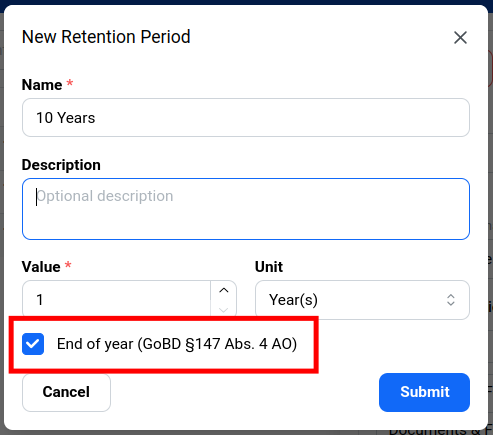
- In the New Retention Period dialog, fill in:
- Name, e.g. “10 years”
- Description (optional), e.g. “Invoices and booking vouchers”
- Value and Unit, e.g.
10andYear(s). The available units are days, months and years. - End of year: see below.
- Click Submit.
The name of a retention period must be unique.
A retention period says how long a document is kept, e.g. 10 years. The pivot says from when those 10 years are counted. You choose the pivot per category:
- Created At: the date the document was uploaded to Papermerge.
- Metadata: a date from the document’s metadata, e.g. the invoice date. Only Date and Date & Time fields that are part of the category’s metadata can be used.
The date of archiving cannot be used as the pivot.
For tax documents, a metadata date such as the invoice date is usually the right pivot: the upload date can be weeks or months later than the date the law counts from.
End of Year
Section titled “End of Year”The End of year option is enabled by default. With it, the retention period starts counting at the end of the pivot’s year, not on the pivot day.
For example, with a 10-year retention period, a document with pivot 17 March 2025 is kept until:
| End of year | Kept until | Expired from |
|---|---|---|
| Enabled | 31 December 2035 | 1 January 2036 |
| Disabled | 16 March 2035 | 17 March 2035 |
German tax law (§147 Abs. 4 AO) requires the end-of-year rule, so keep this option enabled if your documents fall under the GoBD.
Assigning a Retention Period to a Category
Section titled “Assigning a Retention Period to a Category”Retention periods take effect only when they are assigned to a category. In the category dialog, set:
- Retention Period: one of the retention periods you created.
- Retention Pivot: the date the period is counted from, Created At or Metadata. For Metadata, select the date field in Retention Pivot Metadata. See Pivot.
- Deletion Approver (User) or Deletion Approver (Group): who approves the deletion of the category’s documents once they expire. See Deletion Approver.
A document can only be archived when its category has a retention period, a retention pivot and a deletion approver.
When the Expiry Date Is Calculated
Section titled “When the Expiry Date Is Calculated”A document’s expiry date is calculated when the document is archived, from the retention period and the retention pivot of its category at that moment. Papermerge stores this date with the archived document.
The expiry date depends only on the pivot and the retention period, never on the date of archiving. Archiving does not start a clock: it only calculates and records a fixed calendar date.
This means:
- If you change a retention period later, the change applies only to documents archived after the change. Documents that are already archived keep their expiry date.
- If the retention pivot is a metadata field and that field is empty when the document is archived, no expiry date can be calculated. Fill in the date before archiving.
Superseding and Archiving Again
Section titled “Superseding and Archiving Again”When you supersede an archived document, Papermerge creates a new draft version of it. When that draft is archived, the expiry date is calculated again, the same way as the first time.
The retention period does not restart, and the time in draft is neither added nor subtracted:
- Created At is the date the document was first uploaded. Superseding does not change it, so archiving again gives the same expiry date.
- A metadata field belongs to the document, not to a single version. If the date stays the same, archiving again gives the same expiry date. If you correct the date while the document is in draft, the new date is used.
- If you change the document’s category, or the category’s retention period or pivot, while the document is in draft, the new settings are used.
While a document is in draft, it cannot expire. If its expiry date passes during that time, the document expires shortly after it is archived again (Papermerge checks for expired documents every hour).
Example: Invoice Superseded and Archived Again
Section titled “Example: Invoice Superseded and Archived Again”An invoice is in the category Invoices, with a retention period of 10 years and End of year enabled. Its invoice date - the pivot - is 5 June 2026.
| Date | Action | Expiry date |
|---|---|---|
| 20 August 2026 | Invoice uploaded, in draft | none yet |
| 15 September 2026 | Archived | kept until 31 December 2036 |
| 10 October 2026 | Superseded, a new draft version is created | none while in draft |
| 17 October 2026 | Archived again | kept until 31 December 2036 |
The result is the same with either pivot:
- With the pivot Invoice Date (a metadata field), the period is counted from 5 June 2026.
- With the pivot Created At, it is counted from 20 August 2026, the first upload. Archiving again on 17 October 2026 does not change it.
Both dates are in 2026, so with End of year both give 31 December 2036. Without End of year, the invoice would be kept until 4 June 2036 (metadata pivot) or 19 August 2036 (Created At), both before and after archiving again.
Example: Date Corrected While in Draft
Section titled “Example: Date Corrected While in Draft”You notice that the invoice date was entered wrongly: the invoice is from 5 June 2025, not 2026. You supersede the document, correct the Invoice Date field in the new draft and archive it again. The expiry date is now calculated from 5 June 2025: the invoice is kept until 31 December 2035.
With the pivot Created At, correcting the metadata would not change the expiry date, because the upload date stays the same.
Editing and Deleting Retention Periods
Section titled “Editing and Deleting Retention Periods”To edit a retention period, select it on the Retentions page and click Edit. You can change its name, description, duration and the End of year option. Clicking a retention period opens its details page.
To delete retention periods, select them on the Retentions page and click Delete. A retention period that is still assigned to a category cannot be deleted. Papermerge shows which categories use it: assign a different retention period to these categories first, then delete it.
Team and Private Accounts
Section titled “Team and Private Accounts”In team accounts, retention periods are company-wide: every user who can open the Retentions page sees all of them. With the default roles, only the admin role can create, edit and delete retention periods, and the auditor role can view them. See Roles & Permissions.
In private accounts, retention periods belong to your account.