
Folders
Folders provide a familiar way to organize documents in a hierarchical structure. Like folders on your computer, Papermerge folders can contain documents and other folders, allowing you to create any organizational structure you need.
Folder Structure
Section titled “Folder Structure”Papermerge provides two special folders at the top level:
- Home — Your main working area. Create any folder structure here.
- Inbox — Where newly uploaded documents land before you organize them.
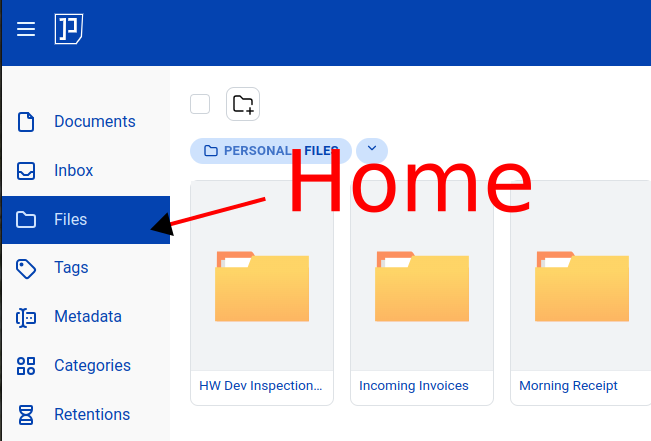
Within Home, you can create as many nested folders as you need:
Home/├── Finances/│ ├── Invoices/│ │ ├── 2024/│ │ └── 2023/│ ├── Receipts/│ └── Tax Documents/├── Contracts/│ ├── Active/│ └── Archived/└── Personal/Creating Folders
Section titled “Creating Folders”To create a new folder:
- Navigate to the location where you want the folder
- Click New Folder
- Enter a name
- The folder is created immediately
You can create folders inside other folders to any depth.
Duplicate Names
Section titled “Duplicate Names”Papermerge is a document management system, not a disk. It tracks every document as its own thing, regardless of what it’s called — so two documents in the same folder can have the exact same name.
This is different from Windows Explorer, macOS Finder, or a Linux file manager,
where every file in a folder must have a unique name. In Papermerge you can, for
example, drop invoice-2026-09-01.pdf into your Inbox three times: you get three
separate documents, and nothing is overwritten or refused.
That’s useful when:
- You genuinely receive the same document more than once
- You re-scan a page that didn’t come out well the first time
- Several unrelated documents happen to share a name (
scan.pdf,download.pdf)
Folders are the exception. Two folders in the same location can’t share a name, exactly like on a traditional file system. If you try to create or rename a folder to a name that’s already taken alongside it, Papermerge stops you with “A folder with this title already exists in this location”.
Moving Items
Section titled “Moving Items”Documents and folders can be moved around freely:
Drag and Drop
Section titled “Drag and Drop”- Select the items you want to move
- Open the secondary panel
- In secondary panel go to the destination folder
- Drag them to the destination folder: from the main panel (source) to the secondary panel (destination)
- Drop to complete the move
The Inbox
Section titled “The Inbox”The Inbox is a special folder designed for incoming documents:
- Uploaded documents can be directed to Inbox by default
- Use Inbox as a staging area before organizing
- Process documents from Inbox: review, add metadata, move to final location
Breadcrumb Navigation
Section titled “Breadcrumb Navigation”When you’re deep in a folder hierarchy, the breadcrumb shows your current path:
Home > Finances > Invoices > 2024Click any part of the breadcrumb to jump directly to that folder.
Folder Tags
Section titled “Folder Tags”Folders can have tags just like documents:
- Select a folder
- Apply tags using the tag button or right-click menu
- Tags appear on the folder in the browser
Use folder tags to:
- Mark folders by project or client
- Indicate folder status (active, archived)
- Group related folders across the hierarchy
Automatic Organization
Section titled “Automatic Organization”While folders provide manual organization, Papermerge can also organize documents automatically using filing rules in categories.
For example, with a filing rule target folder /Clients/{{year}}/:
- You upload an invoice
- Assign it to the Invoices category
- The document is automatically moved to
/Clients/2026/
See filing rules for more details.
Deleting Folders
Section titled “Deleting Folders”When you delete a folder:
- Draft documents inside are deleted
- Archived documents follow retention rules (cannot be deleted if not expired)
- Subfolders are deleted recursively
Best Practices
Section titled “Best Practices”-
Consider filing rules — For high-volume categories, let filing rules organize documents automatically instead of filing manually.
-
Keep it shallow — Deep folder structures are hard to navigate. Prefer fewer levels with more folders at each level.
-
Use consistent naming — Establish naming conventions. “2024-03” or “March 2024” or “03-2024”? Pick one and stick to it.
-
Combine with metadata — Don’t replicate metadata in folder names. If you have a “Vendor” metadata field, you don’t need vendor subfolders.
-
Use Inbox properly — Don’t let the Inbox become a dumping ground. Process documents regularly.