
Tags
Tags are flexible labels you can attach to documents and folders for quick identification and filtering. Unlike categories (which define structure), tags are free-form labels that help you mark and find documents based on your own criteria.
Examples of tags:
- urgent
- reviewed
- tax-2024
- project-alpha
- needs-signature
Tags vs. Categories
Section titled “Tags vs. Categories”Tags and categories both help organize documents, but they work differently:
| Tags | Categories | |
|---|---|---|
| Per document | Multiple | One |
| Structure | Free-form labels | Defines metadata template |
| Retention | No | Yes |
| Visual | Color-coded | No special styling |
| Use case | Status, projects, workflows | Document classification |
Use categories for what a document is (invoice, contract, receipt). Use tags for additional context (urgent, reviewed, Q1-2024).
Creating Tags
Section titled “Creating Tags”You can create, edit, and delete tags directly in the documents list:
- Select the document you want to add or remove tags from
- Click the Edit Tag button
- Enter a name (e.g., “urgent”)
- Click Submit
Similarly, you can add/remove tags for a specific document in the Inbox or Files views.
You can also add/remove tags directly in the document view.
Tagging Folders
Section titled “Tagging Folders”Tags on folders help you organize your folder structure:
- Select a folder
- Apply tags the same way as documents
- Folder tags are visible in the file browser
Filtering by Tags
Section titled “Filtering by Tags”Tags enable quick filtering to find related documents:
- Click on a tag (in the sidebar or on a document)
- The view filters to show only items with that tag
- Combine multiple tags to narrow results further
Tag Search
Section titled “Tag Search”You can also search for tags by name in the search bar. This helps when you have many documents and want to see everything marked with a specific tag.
Managing Tags
Section titled “Managing Tags”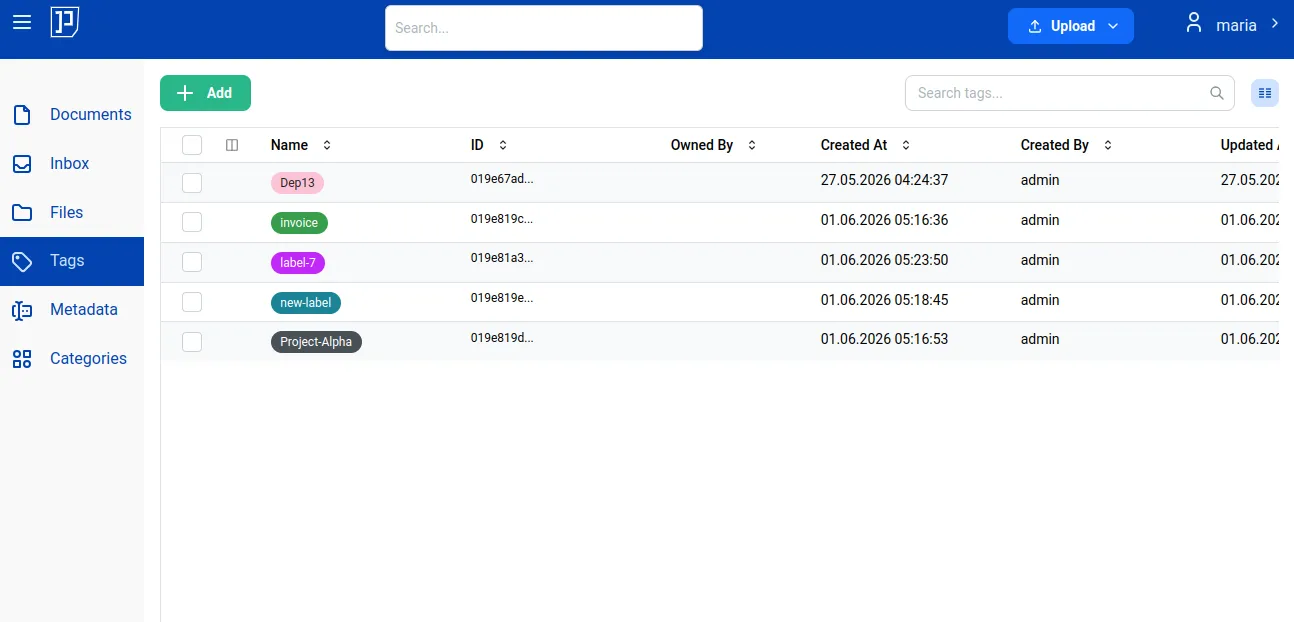
Editing Tags
Section titled “Editing Tags”To modify an existing tag:
- Go to Tags navigation menu
- Click on the tag to edit
- Change name, colors, or description
- Save changes
Changes apply immediately to all documents using that tag.
Deleting Tags
Section titled “Deleting Tags”When you delete a tag:
- The tag is removed from all documents and folders
- The documents and folders themselves are not affected
- This action cannot be undone
Best Practices
Section titled “Best Practices”-
Keep tags short — “urgent” is better than “this is urgent”. Short tags are easier to read and take less space.
-
Use lowercase — Consistent casing makes tags easier to find and type. Pick a convention and stick to it.
-
Avoid duplicates — Before creating a tag, check if a similar one exists. “reviewed” and “Reviewed” would create confusion.
-
Use prefixes for groups — If you have many tags, use prefixes to group them: “project-alpha”, “project-beta”, “status-reviewed”, “status-approved”.
-
Don’t over-tag — Tags lose value when everything has many tags. Use them for meaningful distinctions, not to repeat information already in metadata.
-
Review periodically — Remove tags that are no longer used. Old project tags or obsolete status markers clutter the tag list.
Use Cases
Section titled “Use Cases”Workflow Status
Section titled “Workflow Status”Track where documents are in your process:
needs-review→reviewed→approvedpending-signature→signedtodo→in-progress→done
Projects
Section titled “Projects”Group documents by project:
project-website-redesignproject-2024-auditclient-acme
Time-Based
Section titled “Time-Based”Mark documents by period:
tax-2024q1-2024archive-2023
Priority
Section titled “Priority”Flag important items:
urgenthigh-prioritydeadline-friday