
Navigation
Of all the items on the navigation menu bar, three are worth explaining in
detail: Documents, Inbox, Files. All other items are self-explanatory.
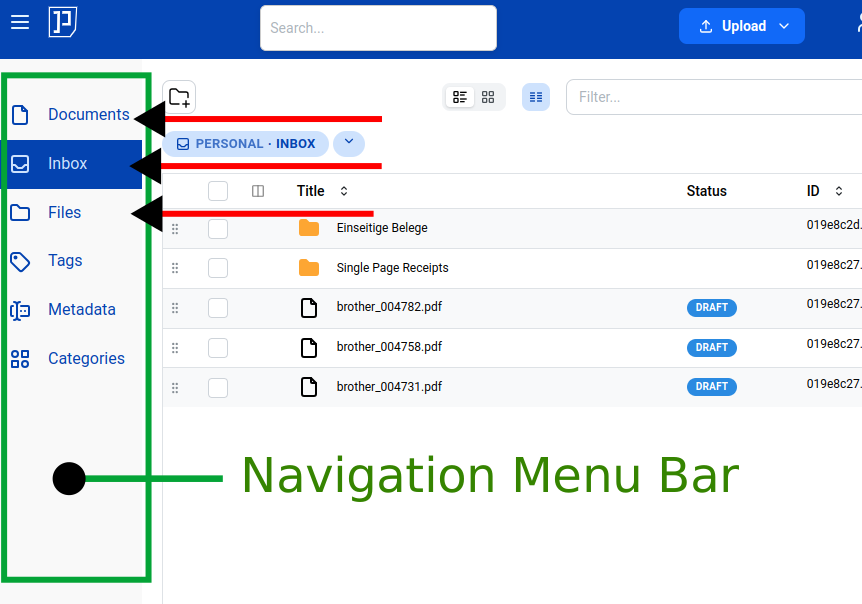
Documents
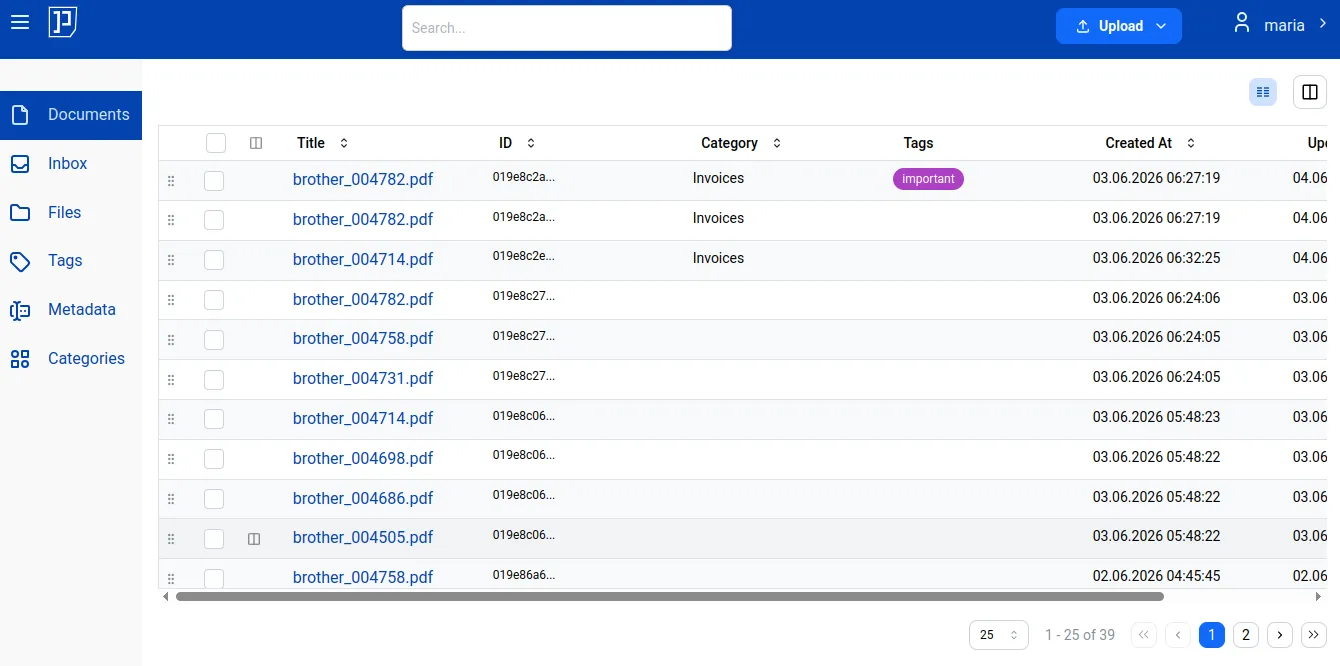
Section titled “Documents”Documents lands you in a flat list of all documents you have access to.
This is the classic DMS view — no folders, no moving documents between
locations. This is the place where you are supposed to spend most of your
time once all your documents are arranged: that’s why this menu appears
first on the list. Also, naming it “Documents” strongly suggests
that you will deal only with documents (i.e. no folders).
If you’ve encountered document management systems before, this view
will be familiar to you. Here you can filter documents by specific criteria.
Inbox and Files
Section titled “Inbox and Files”Both Inbox and Files are so-called special folders. Inbox is your
special folder where incoming documents land. Files, which is internally
called Home, is the folder where all your private documents live.
Both Inbox and Files land you in the so-called Navigator: here you can
browse documents and folders in a similar way to the familiar desktop file
browsers — similar to what you have on your computer. This is on
purpose — users who have never worked with document management systems feel
initially uncomfortable with a “flat list of documents”. Also,
it is very handy and intuitive to think in terms of folders. While in
Navigator you can create folders, move them around, and place documents in
whatever folder you like.
Once you’ve set up filing rules, you won’t need to manually organize most documents. Until then, the Navigator is your primary way to arrange them. That being said, manually moving documents between folders can also be handy at times. For example, if you upload a batch of scanned files where each file contains dozens of individual invoices, you may want to extract those invoices one by one. While doing this, you may find it useful to place already-processed files in one temporary folder and files still awaiting processing in another.
Internally, both Inbox and Home (Home = Files) are just regular
folders — they don’t carry any special “magic”. The only thing that
distinguishes them is their semantics: Inbox is the folder for incoming
documents — ones that haven’t yet been reviewed, categorized, or moved into
Files. Files is the folder for already-arranged documents.
While in Navigator, you can switch from Files to Inbox:
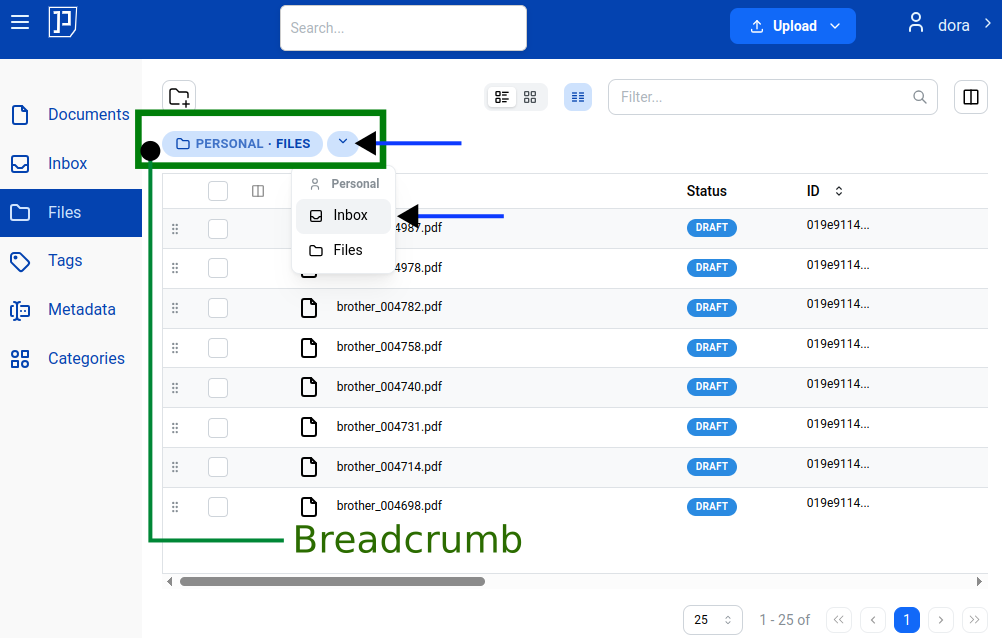
This is especially handy if you have two panels open and want Inbox in
one and Files in the other:
For team accounts you may have access to team cabinets, in such case you will see the list of cabinets you have access to in the breadcrumb:
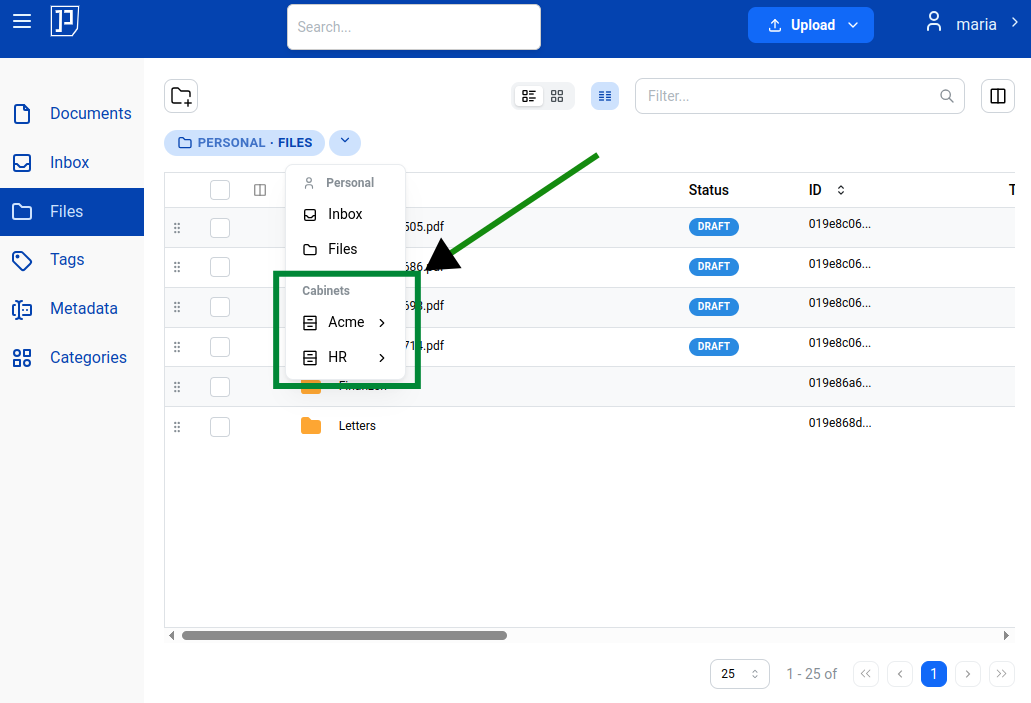
Here is an example of switching to cabinet Acme’s Files folder in secondary panel:
Like personal accounts, cabinets also have their own Files and Inbox folders.
Read more about cabinets here.