
Dual Panel
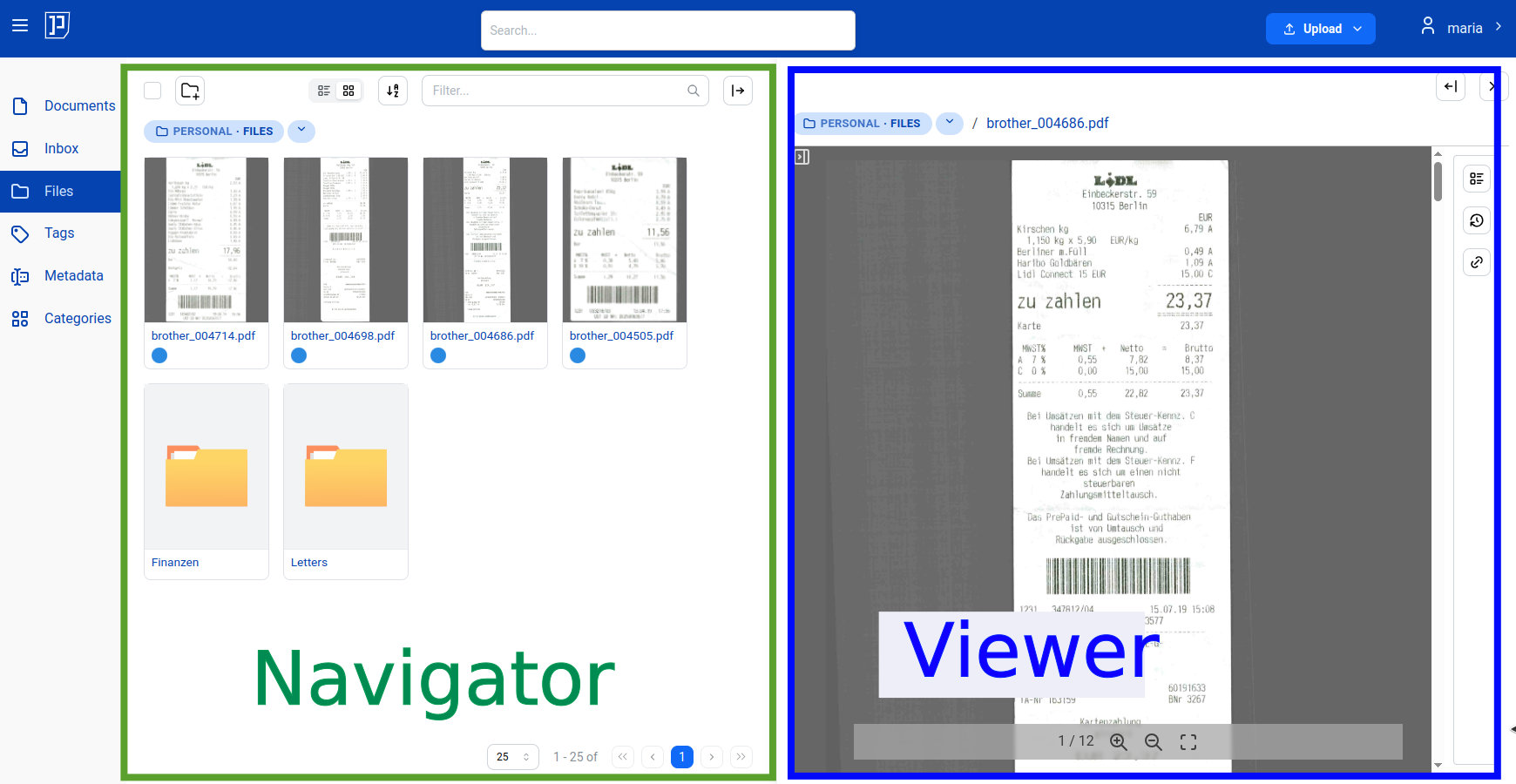
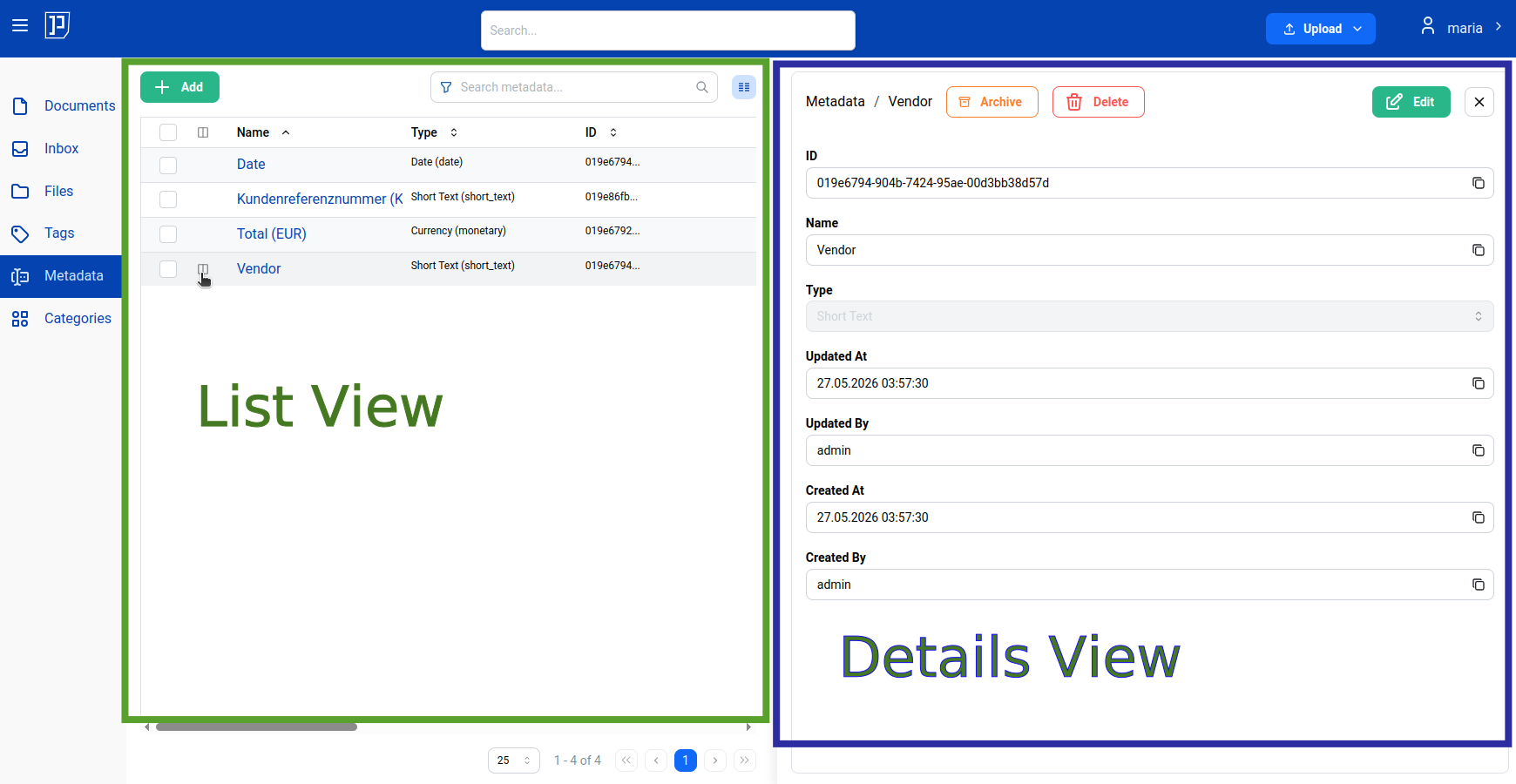
Papermerge uses a panel-based interface. A panel is the main working area of the screen — it can display a file browser, a document viewer, or an administration view.
By default, Papermerge shows a single panel. You can open a second panel at any time to work with two views side by side — this is called dual panel mode.
Opening the Secondary Panel
Section titled “Opening the Secondary Panel”To open the secondary panel, click the Open Secondary Panel button.
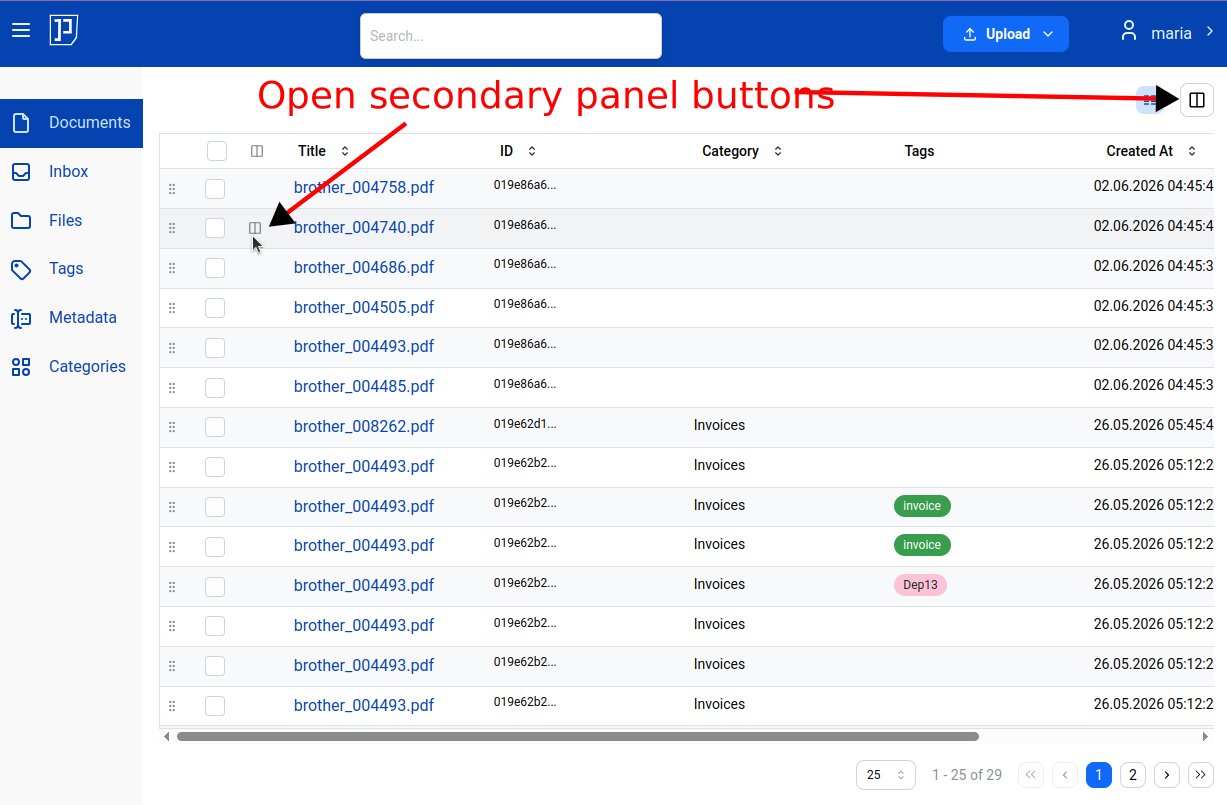
To close the secondary panel, click the Close button on the secondary panel.
What a Panel Can Show
Section titled “What a Panel Can Show”Each panel independently displays one of the following:
- Navigator — the file browser for navigating folders and documents
- Viewer — the document viewer for reading and working with pages
- Administration views — lists and detail views for tags, categories, custom fields, users, groups, roles, retentions, and audit logs
Resizing Panels
Section titled “Resizing Panels”Drag the divider between the two panels left or right to adjust their relative sizes.
Use Cases
Section titled “Use Cases”Dual panel mode is useful whenever you need to work with two things at once:
- Extracting pages — source document in one panel, target folder in the other
- Moving pages between documents — source document in one panel, target document in the other
- Filing documents — file browser in one panel, document viewer in the other
- Administration — manage tags or categories in one panel while browsing documents in the other
Here is an example in which the dual panel approach simplifies the page extraction experience: