
Document Lifecycle
Every document in Papermerge moves through a small number of states, starting the moment you upload it and ending, potentially years later, when it’s deleted. This page explains what each state means, what you can (and can’t) do to a document while it’s in that state, and how to move a document from one state to the next.
A document can be in one of the following states:
- Draft
- Archived
- Superseded
- Expired
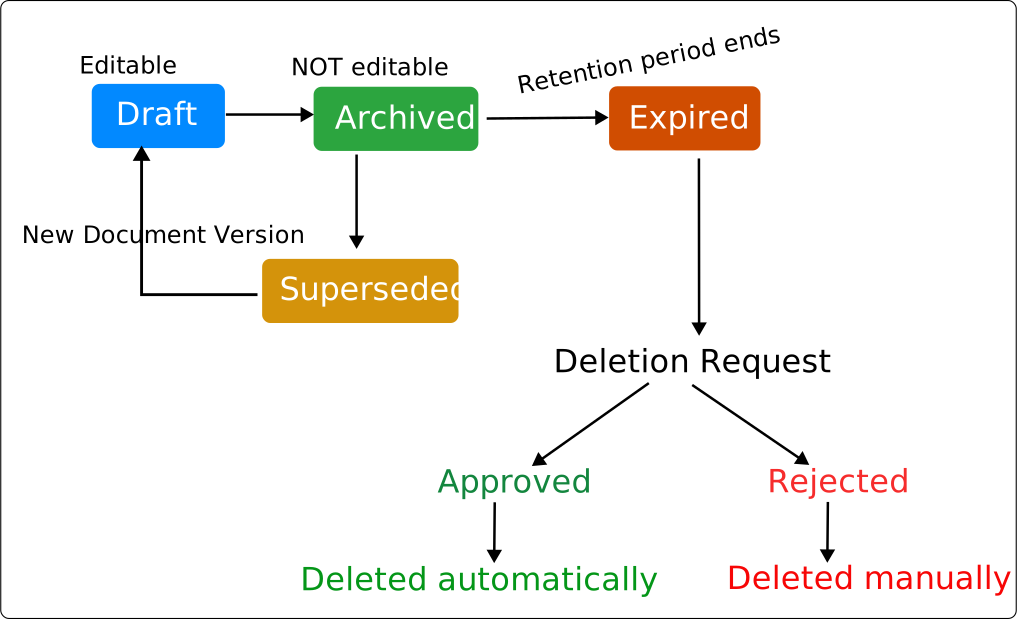
All newly uploaded documents start out as Draft — this is the state a
document is in while you’re getting it ready for archiving. While a document
is in Draft, you can:
- Change its title
- Add or remove tags
- Assign it to a category and fill in metadata
- Rotate, reorder, delete, or extract pages (see Organize Pages)
- Delete the document entirely
A document stays in Draft for as long as you need — nothing happens
automatically. The key point is that a Draft document isn’t ready to be
committed to long-term storage yet, so it’s still fully open to change —
which is exactly why you’re also free to delete it outright if it turns out
you don’t need it.
Archived
Section titled “Archived”Once a document is ready — pages in order, category assigned, metadata filled in — archive it by opening it and clicking Archive in the details panel.
Archiving requires the document to be assigned to a category that has a retention period and a deletion approver configured (the setup wizard sets this up for you automatically; see Categories to configure it manually).
Example: You upload a receipt that was scanned upside down. You rotate the page, assign it to the Receipts category, fill in the metadata (date, amount, vendor), and archive it.
Superseded
Section titled “Superseded”Archived doesn’t mean unfixable — it means corrections leave a trace. If you spot a mistake in an archived document — a typo, the wrong category, missing metadata — open it and click Supersede. This immediately:
- Creates a new version of the document, starting in
Draft - Marks the archived version as
Superseded
You can optionally attach a short note explaining the correction, and you can even replace the file itself — for example, if you need to upload a corrected scan. The superseded version is never deleted; it stays in the system, fully accessible, alongside the new draft.
Make your corrections on the new Draft version, then archive it as usual.
Example: You archived an invoice but later notice the category should be
Business Expenses, not Personal. You supersede it, fix the category on
the new draft, and archive that. The original version is now Superseded
but stays accessible for audits.
Expired
Section titled “Expired”Every archived document has a retention period
— a minimum length of time it must be kept, based on its category. When that
period ends, the document automatically becomes Expired.
Expired doesn’t mean the document is deleted, or even deletable right
away — it just means the document is now eligible for deletion. Removing
it still requires sign-off from the category’s deletion approver, who will
find it waiting in their deletion-approval queue.
- If approved, the document is scheduled for permanent deletion.
- If rejected (a reason is required), the document stays
Expiredand can be submitted for deletion again later.
See Data Retention for how retention periods and deletion approval are configured.
Document State vs. Version State
Section titled “Document State vs. Version State”A document can have several versions over its lifetime — the original upload, plus one new version for every correction — and each version has its own state.
For example, a receipt might go through:
- Version 1 uploaded → document is
Draft - Version 1 archived → document is
Archived - A mistake is found; Version 1 is superseded, creating Version 2 →
document is
Draftagain (Version 1 is nowSuperseded) - Version 2 archived → document is
Archivedagain - Years later, the retention period ends → document is
Expired
Every version stays in the system for as long as the document exists, so you — or an auditor — can always see exactly what changed, when, and who made the change.
| Versions | Document State |
|---|---|
V1 Archived | Archived |
V1 Superseded, V2 Draft | Draft |
V1 Superseded, V2 Archived | Archived |
V1 Superseded, V2 Archived, V3 Superseded, V4 Draft | Draft |
V1 Superseded, V2 Archived, V3 Superseded, V4 Archived | Archived |