
Inbound Email
Inbound email lets you add documents to Papermerge by sending them to a
personal email address. The email itself and each of its attachments become
separate documents in your Inbox. Papermerge keeps the originals and adds a
PDF version of each for preview.
This is handy when documents already reach you by email, or when a device can send email but can’t upload files directly. For example:
- Forward invoices and receipts from your mailbox as they arrive.
- Scan to email: many scanners and multifunction printers can email a scan to a fixed address.
- Share from your phone: send a photo or PDF from any mail app.
Create an address
Section titled “Create an address”- Open the User menu in the upper-right corner of the screen.
- Navigate to Preferences → Inbound Email.
- Click +.
Papermerge creates a new address that looks like this:
The address is listed on the same page. Use the copy button next to it to copy it to your clipboard:
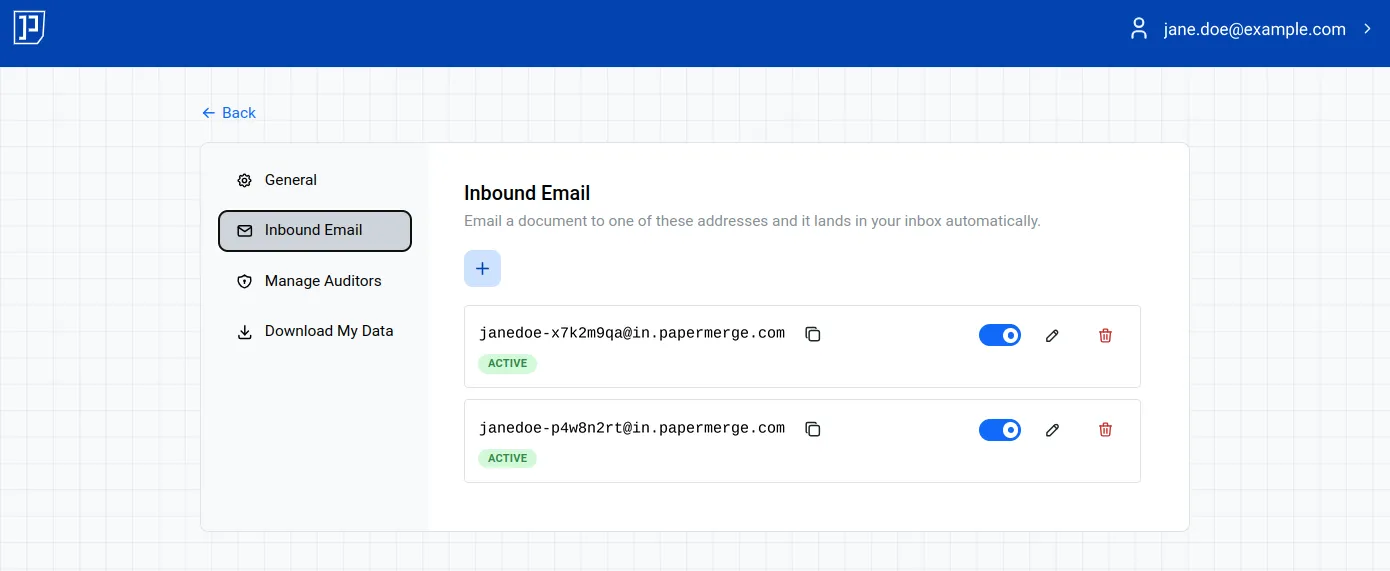
The random part after your username makes the address hard to guess. Treat it like a password and only give it to people and devices that should be able to add documents to your account.
What gets imported
Section titled “What gets imported”For each email Papermerge receives at your address, it creates:
- One document for the email itself, holding the sender, subject, date and body.
- One document for each attachment.
All resulting documents are placed in your Inbox. An email without
attachments still produces one document: the email itself.
Email and attachments stay linked
Section titled “Email and attachments stay linked”Papermerge links the email document to each of its attachment documents with a document relation of type Attachment. You can see these links in the Related Documents tab of either document:
- Open the email document to see its attachments, listed as has attachment.
- Open an attachment document to see the email it came with, listed as is attachment of.
Attachment is one of the predefined relation types in Papermerge. It is directional: it reads has attachment from the email’s side and is attachment of from the attachment’s side. You can also define your own relation types under Relation Types in the main menu.
Originals are kept
Section titled “Originals are kept”Papermerge keeps the original of everything it receives. Each imported document starts with two versions:
| Version | Email document | Attachment document |
|---|---|---|
| Version 1 | The original email, as an .eml file | The original file, unchanged |
| Version 2 | A PDF rendering of the email | A PDF conversion of the attachment |
The PDF in version 2 is there so you can preview the document in Papermerge. Version 1 is the exact file that arrived by email. This matters when you need to prove what you received, for example for an audit. See Document State vs. Version State for more about versions.
Document names
Section titled “Document names”- The email document is named after the email’s subject. For example, an
email with the subject
Fwd: Invoice 42becomes a document namedFwd Invoice 42. - Each attachment document keeps the attachment’s file name.
Supported attachments and limits
Section titled “Supported attachments and limits”- Supported attachment types: PDF, JPG, PNG and TIFF.
- Maximum email size: 40 MB, including all attachments.
Unsupported attachments
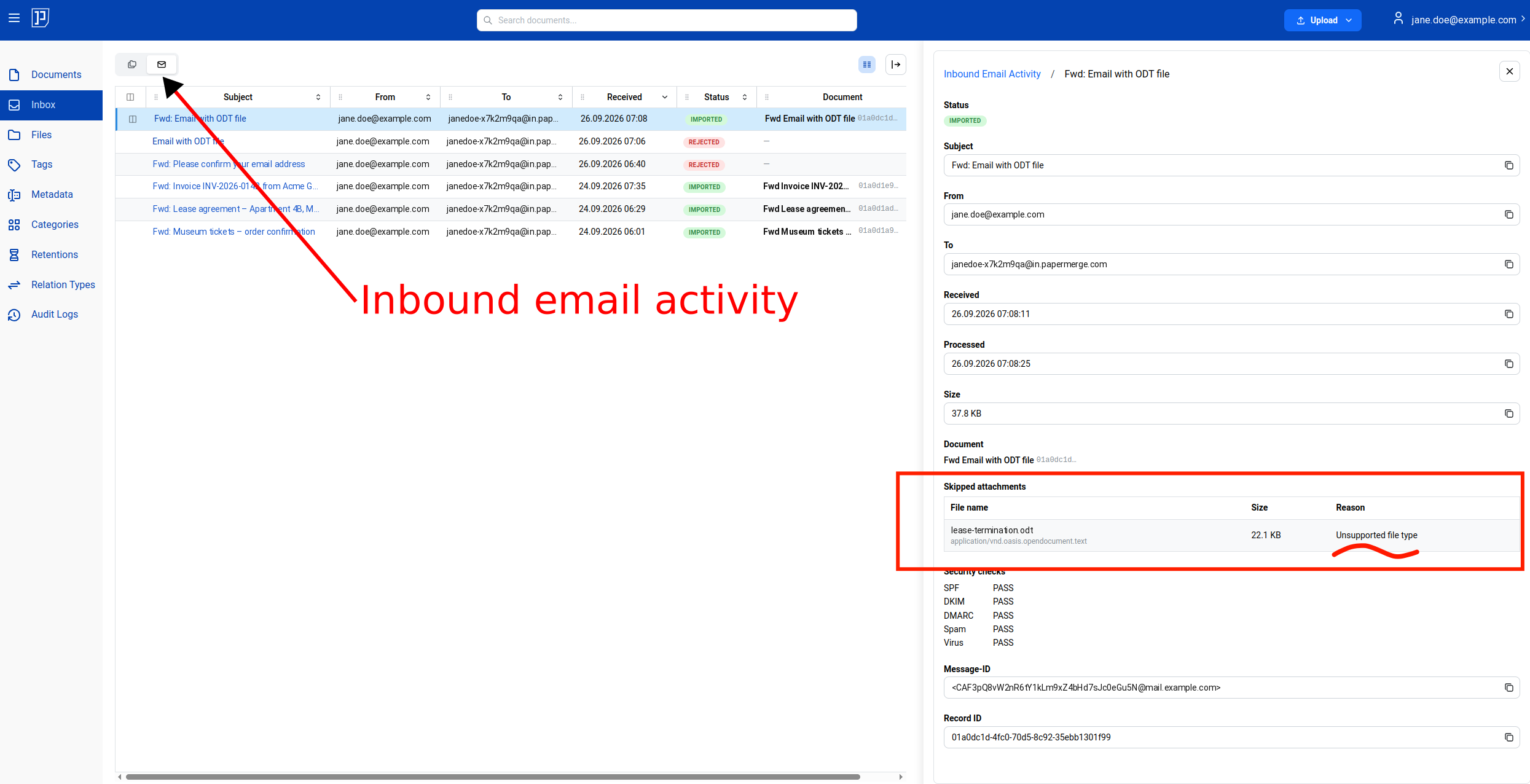
Section titled “Unsupported attachments”If an email contains attachments of an unsupported type, Papermerge still
imports the email and any supported attachments, and skips the rest. The
email’s entry in the inbound email activity is
marked IMPORTED and lists the skipped files under Skipped attachments,
with the reason Unsupported file type:
Manage addresses
Section titled “Manage addresses”You can create up to 10 addresses. Having several is useful when you want a separate address per sender or device, for example one for your scanner and one for forwarding invoices. You can then turn off a single address without affecting the others.
On Preferences → Inbound Email you can:
- Disable an address with its toggle switch to stop accepting email on it
temporarily. Email sent to a disabled address is rejected and no documents
are imported. The attempt still shows up in the
inbound email activity, with the reason
Address was disabled. - Enable it again later with the same switch.
- Delete an address you no longer need with the trash icon.
Allowed senders
Section titled “Allowed senders”By default, anyone who knows your address can send documents to your Inbox.
To restrict this, add the email addresses you want to accept documents from
to the address’s list of allowed senders. Once the list is set,
Papermerge only imports email from those senders.
Each inbound address has its own list, so you can, for example, allow only your scanner on one address and your own mailbox on another.
Every allowed sender is a single, complete email address, such as
[email protected]. Wildcards and whole domains, such as
*@example.com, are not supported.
Security checks
Section titled “Security checks”Papermerge checks every incoming email before importing it:
- SPF, DKIM and DMARC verify that the email really comes from the sender it claims to be from.
- Spam and virus scans filter out junk and malicious content.
If any of these checks fails, the email is rejected and no documents are imported. You can see the result of each check in the email’s details in the inbound email activity.
Inbound email activity
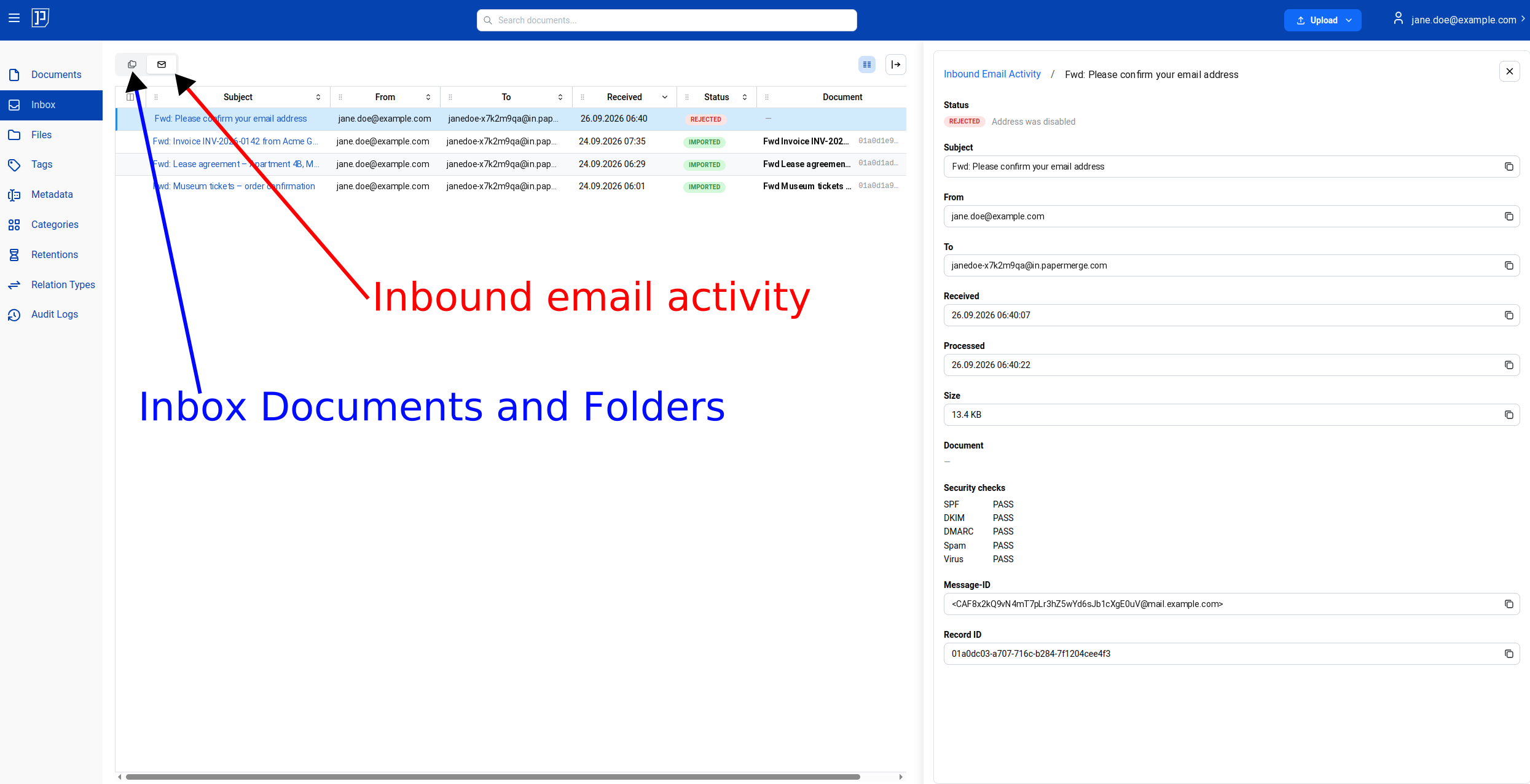
Section titled “Inbound email activity”Papermerge logs every email that arrives at one of your addresses, whether it
was imported or rejected. To see the log, open your Inbox and switch to the
email activity view (see screenshot below).
In the example below, the email was rejected because it was sent to a disabled address:
Troubleshooting
Section titled “Troubleshooting”If an email doesn’t show up in your Inbox, first look it up in the
inbound email activity. If it was rejected, the
details show the reason. Otherwise, check the following:
- The address is enabled. Disabled addresses don’t accept email.
- The sender is allowed. If you use allowed senders, the address the email was sent from must be on the list.
- The attachment is supported. If the email arrived but an attachment is missing, look for it under Skipped attachments in the email’s details. Only PDF, JPG, PNG and TIFF attachments are supported, and the whole email must be 40 MB or smaller. See Supported attachments and limits.
- Give it a moment. Converting larger emails can take a little time.