
Auditor Access and Full Data Export
For compliance purposes, tax authorities must be able to access all tax-relevant documents through three defined access methods:
| Access Type | Description |
|---|---|
| Z1 | Direct read-only access to the live system |
| Z2 | You run queries on behalf of the auditor according to their specifications |
| Z3 | Full data export including all metadata and structural information |
Z1 - Direct Access to the Live System
Section titled “Z1 - Direct Access to the Live System”Depending on the type of account you have, access is granted differently.
Solo Accounts
Section titled “Solo Accounts”If you are on a solo account:
- Open the User Menu (upper right corner of the screen)
- Select Manage Auditors -> click Invite Auditor
Invite Auditor
Section titled “Invite Auditor”Enter auditor email, and optionally for how long the invite link will stay valid (default to 90 days), the language of the invitation email.
It is important that the auditor email be a valid email.
To keep this example concrete, we will use Frederik, who has a solo
account and wants to be audited by Sophia (her imaginary email is [email protected]).
Auditor Dashboard
Section titled “Auditor Dashboard”Sophia will receive an invitation email at the specified address ([email protected]).
She then needs to create a solo account. Once she has created a PM solo account and
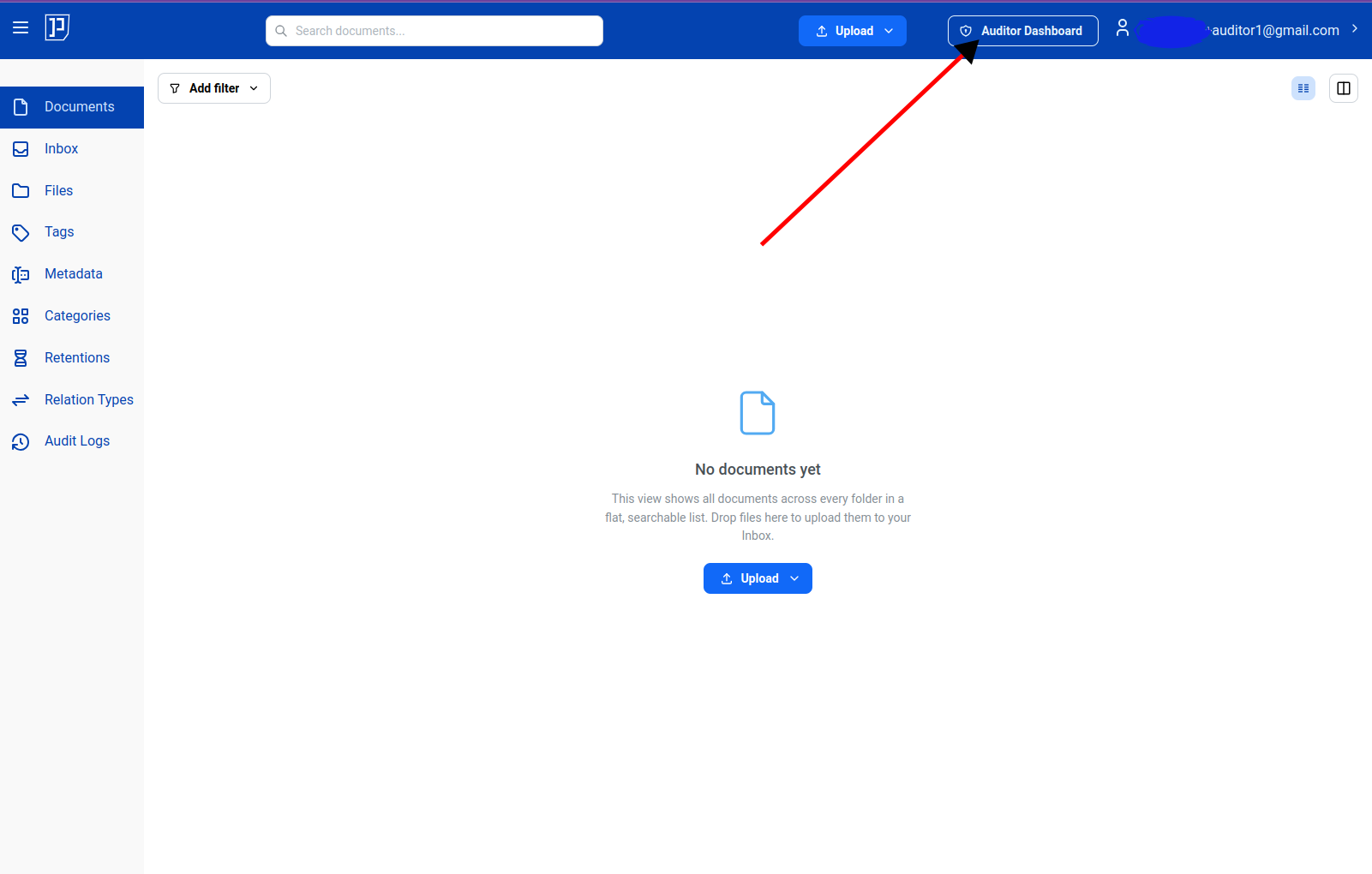
logged in, she will see “Auditor Dashboard” in the header menu.
Audit Mode
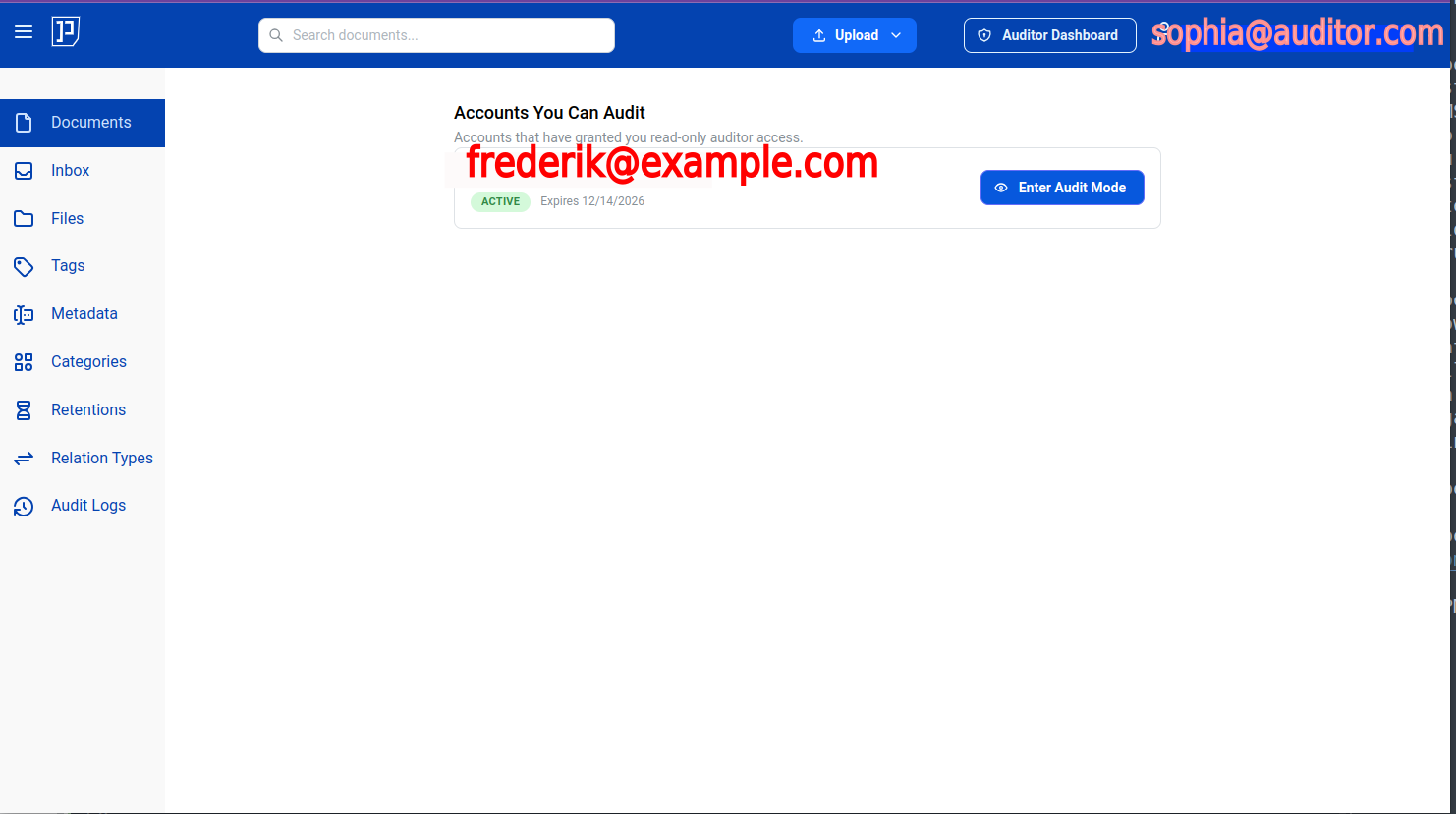
Section titled “Audit Mode”Once Sophia clicks “Enter Audit Mode”, she gets read-only access to Frederik’s account and can browse all of his documents and categories, perform searches, access audit logs, and download documents — seeing exactly the same results Frederik would. In other words, Sophia has read-only access to the very same live system account as Frederik, which aligns with the Z1 specification of GoBD.
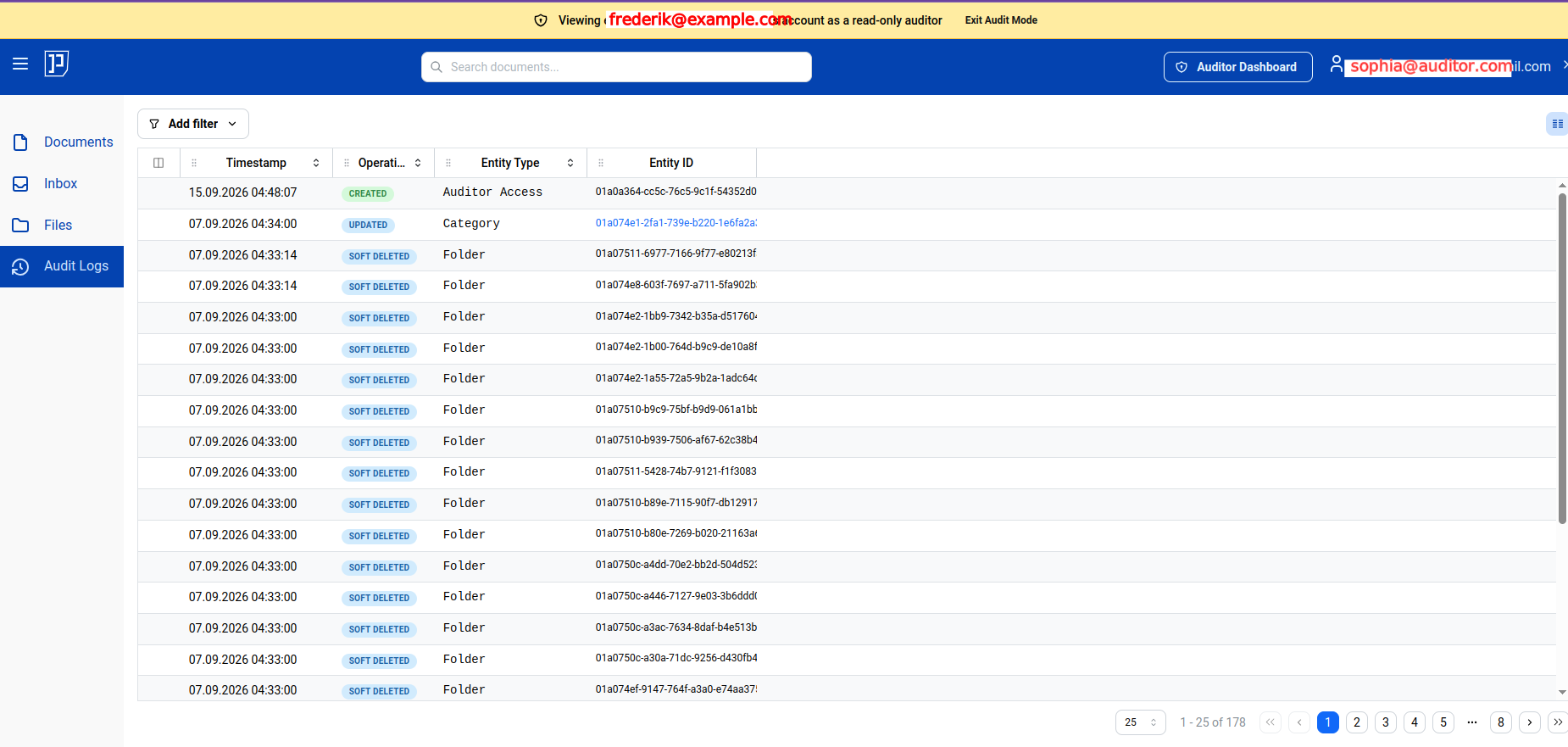
While in auditor mode, a banner at the top of the menu states that Sophia is in auditor mode and whose account she is currently accessing. To exit audit mode, she clicks “Exit Audit Mode” from the top menu.
Team Account
Section titled “Team Account”In a teams account, an administrative user can create a user with the auditor role.
TODO: Further steps to be described…
Z2 - Run Queries on Behalf of Auditor
Section titled “Z2 - Run Queries on Behalf of Auditor”The Z2 access type is another type of access described in the GoBD compliance guideline. In this mode, the auditor specifies which evaluations they need, and you (or someone you designate) run those queries on their behalf in your own system — the auditor never operates the system directly. In practice this is often done with the auditor present, watching over your shoulder, but what defines Z2 is who performs the query, not physical presence. The picture below illustrates this mode.

Z3 - Full Data Export
Section titled “Z3 - Full Data Export”Yet another way to grant your auditor access to your documents is by exporting all your documents and their associated data. The so-called Z3 data access type (from the GoBD specification) is exactly about that.
Solo Accounts
Section titled “Solo Accounts”To export all your documents and their data:
- Open the User Menu (upper right corner of the screen)
- Select Download My Data -> click Request Export
This triggers an export job in the background. Once the export completes, you will receive an email.
The export is available as a .zip file. Once you have downloaded all your
documents and their associated data, you can hand the file to your
auditor through a separate channel.
Team Account
Section titled “Team Account”In a teams account, only an administrator can run a full data export.
TODO: Further steps to be described…