Search
What makes Papermerge a real document management system, as opposed to a usual
file browsing system, is that you can associate metadata with documents and
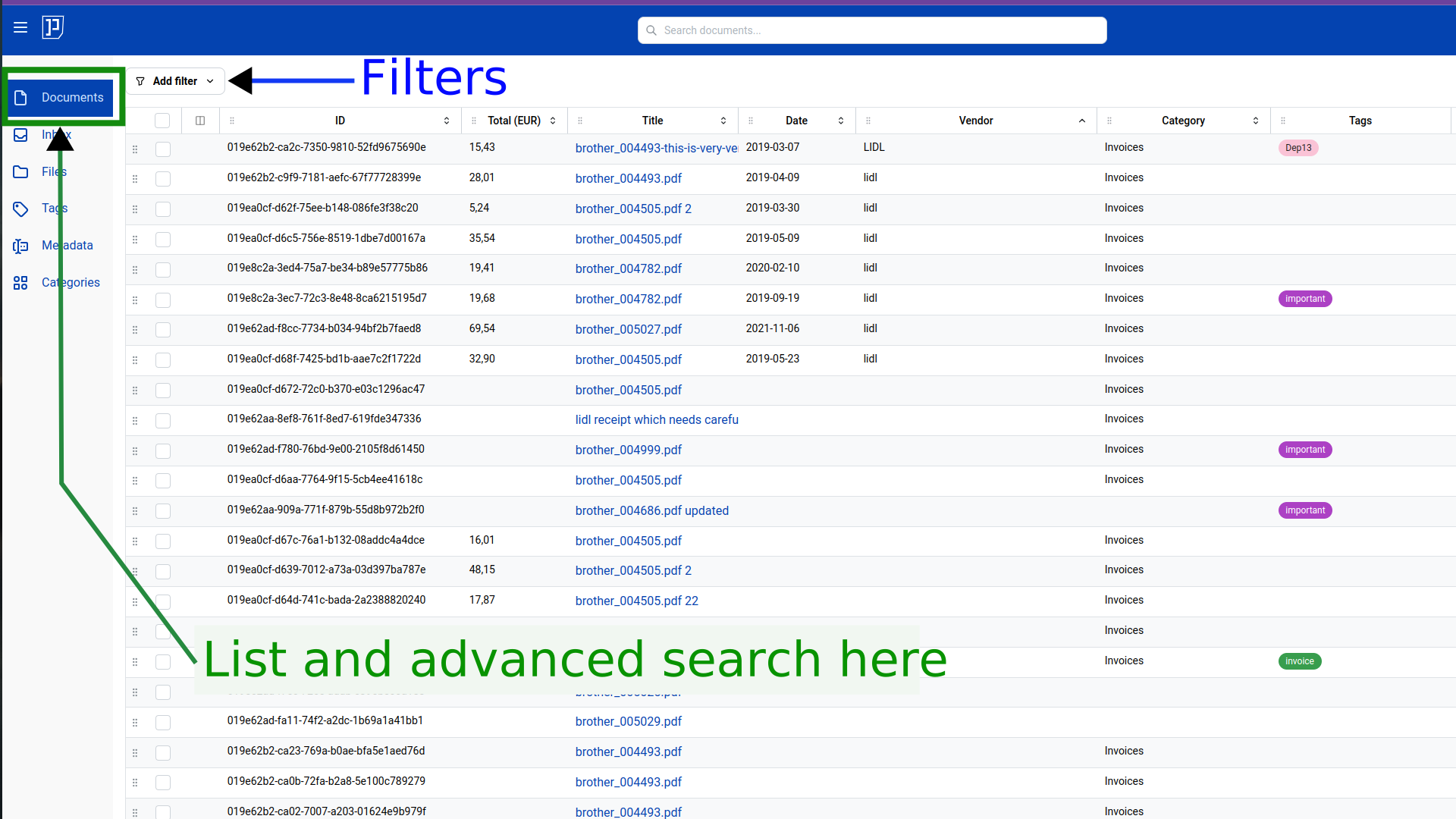
then filter by it. Searching is available in the Documents section — the
very first item in the navigation bar. If you don’t pick any filter, all
documents you have access to are shown in a flat list.
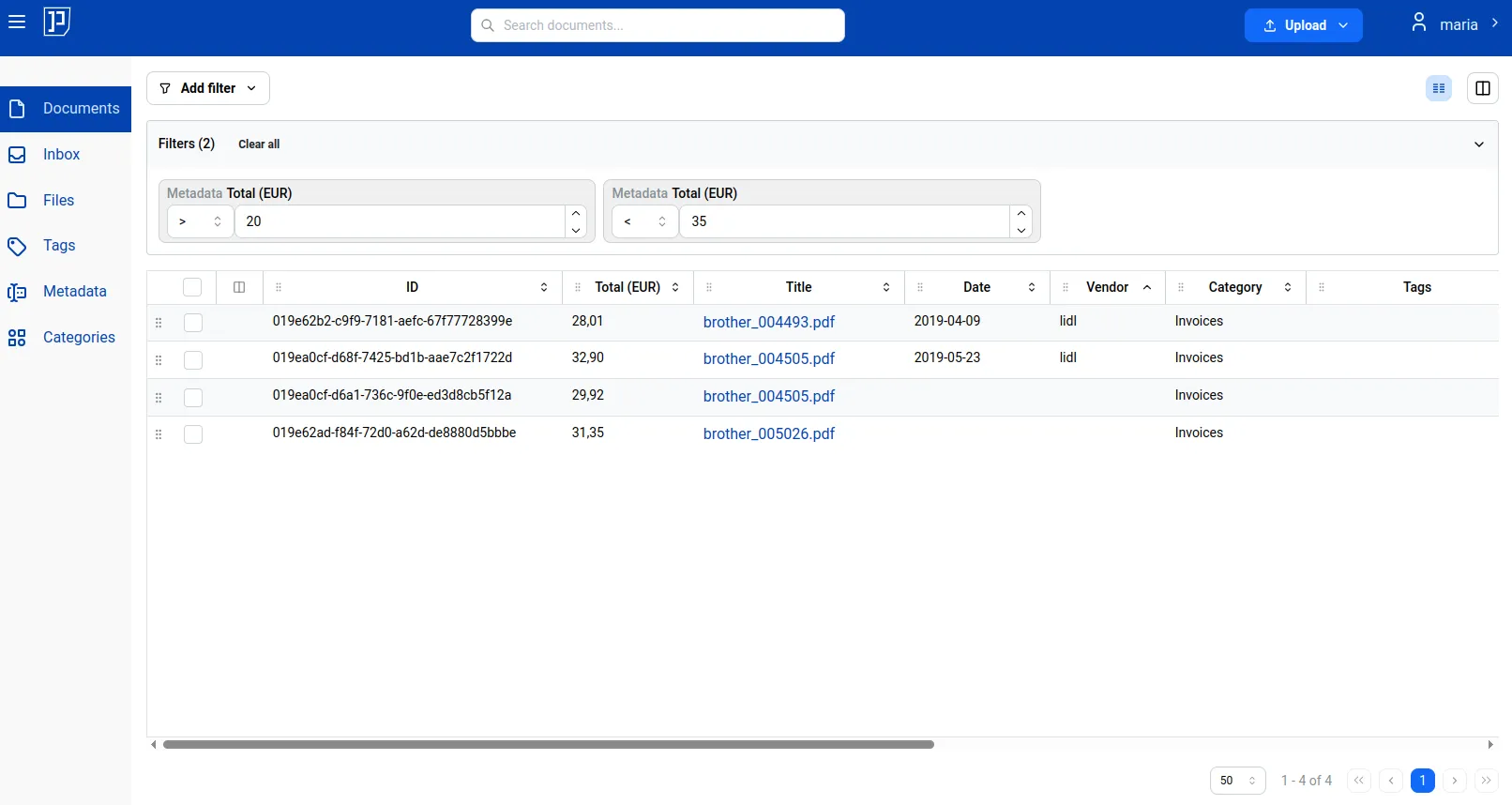
In the illustration below, we filter all documents that have a “Total (EUR)” value greater than 20 but less than 35. “Total (EUR)” is a custom metadata field of monetary type with the currency set to Euro:
In the following screen recording you can see the dual panel in action. On the left panel we filtered all documents by “Total (EUR)” amount and in the second panel we view each document with its details.
There are two types of searches:
- Advanced Search
- Quick Search
The example above shows Advanced Search, but there is much more to it.
Advanced Search is only accessible in Documents. The next section covers it
in detail. Quick Search is the search in the header menu (always visible);
it supports basic searches by document ID and by document title.
Advanced Search
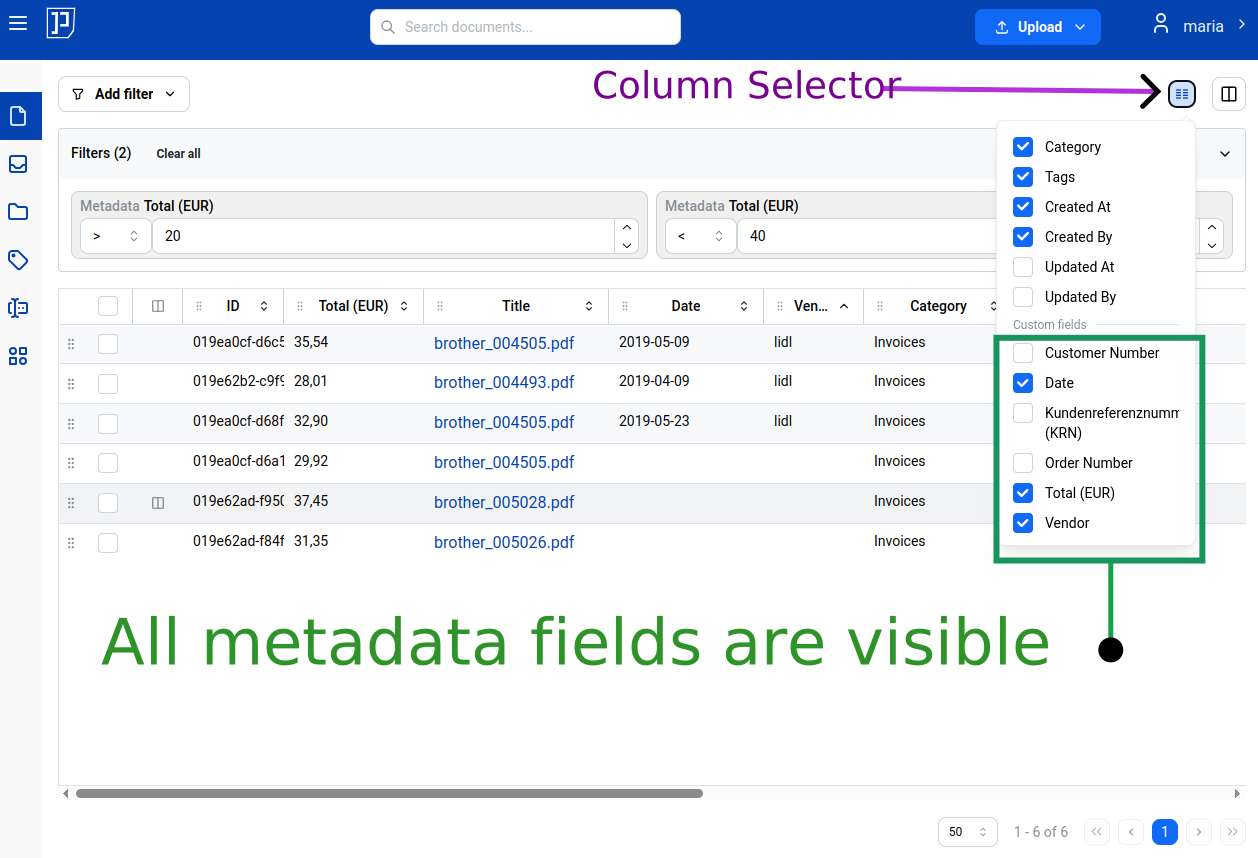
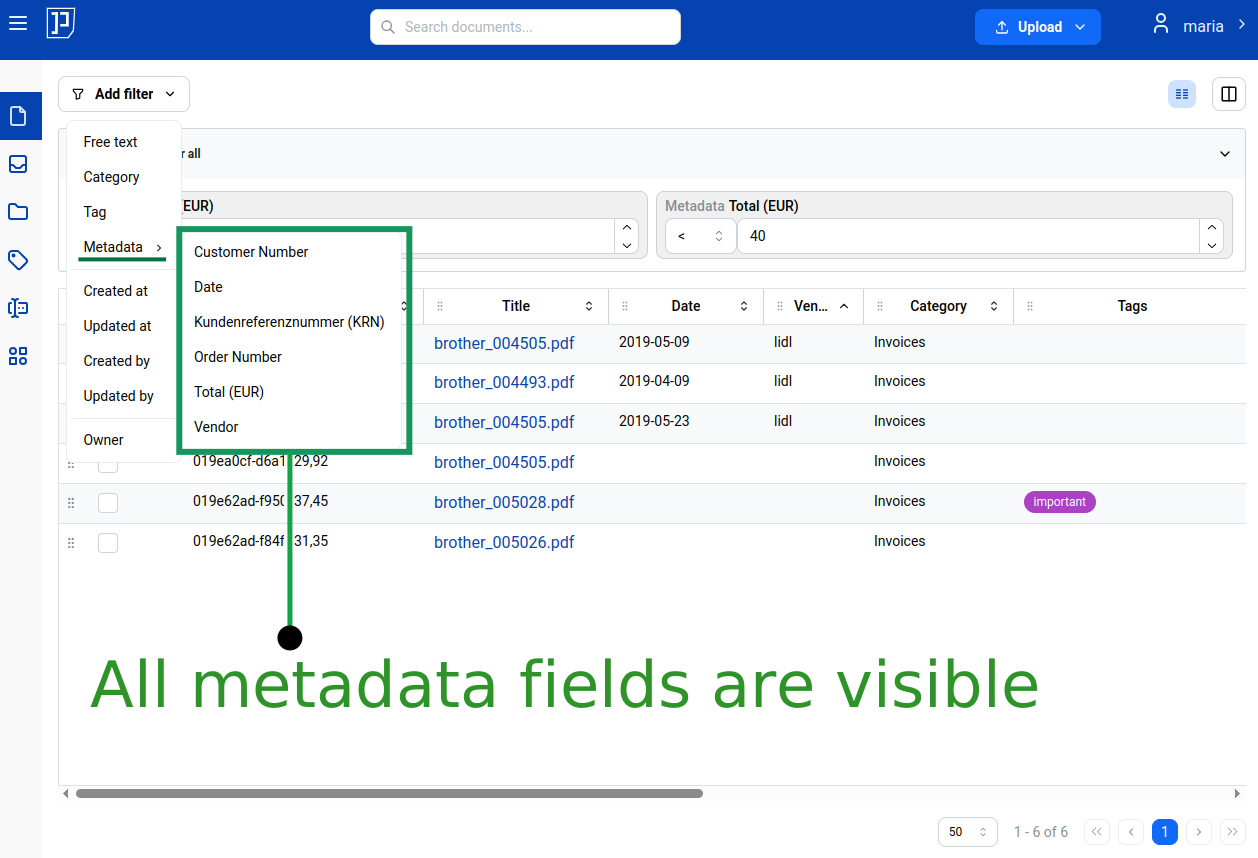
Section titled “Advanced Search”In Papermerge you cannot associate metadata directly with a document — you can do that only via a category, i.e. you associate metadata with a category and then assign that category to the document. This is important in the context of searching: if the user does not pick a specific document category, Papermerge does not have any way to determine which metadata fields are relevant, and so it shows all of them. In the illustrations below, because the user did not pick any particular category, both the column selector and the metadata selector show all custom fields:
A similar situation arises if the user picks multiple categories.
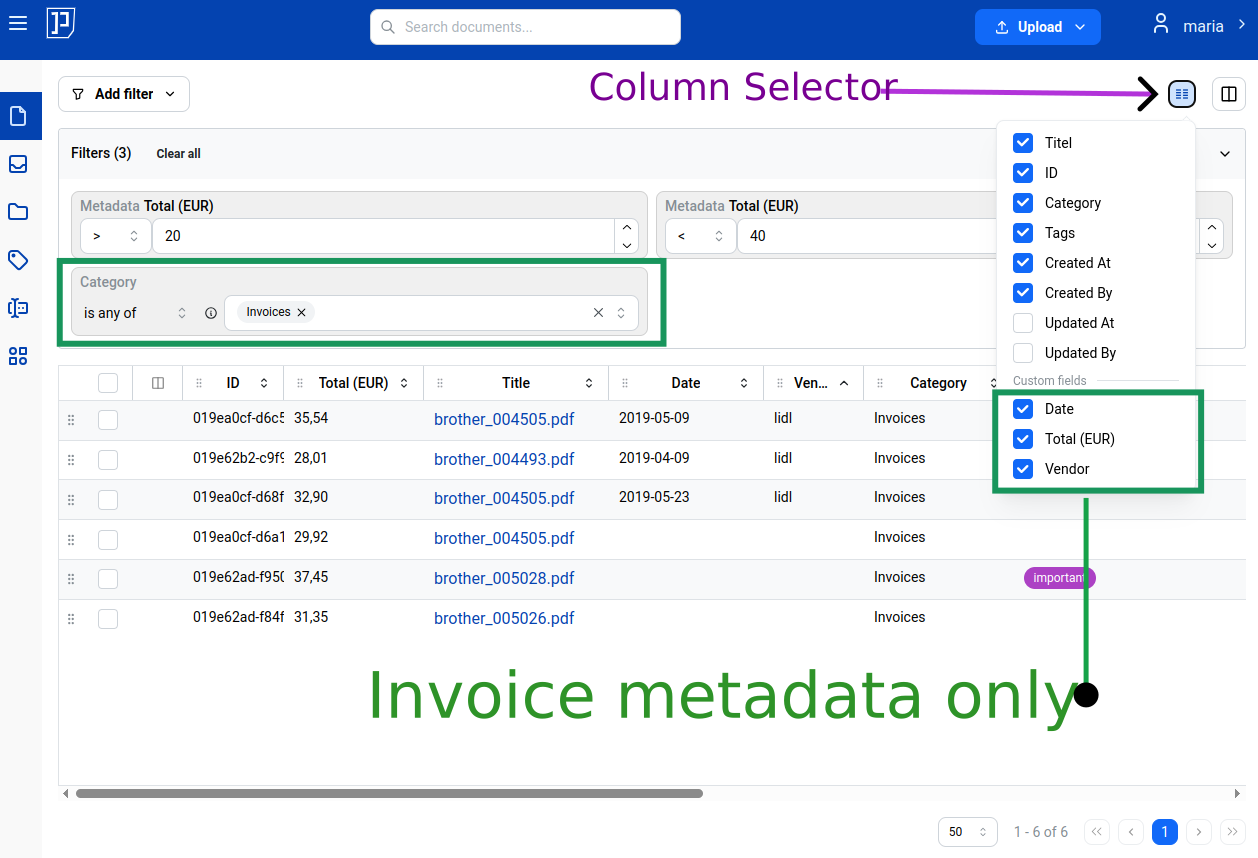
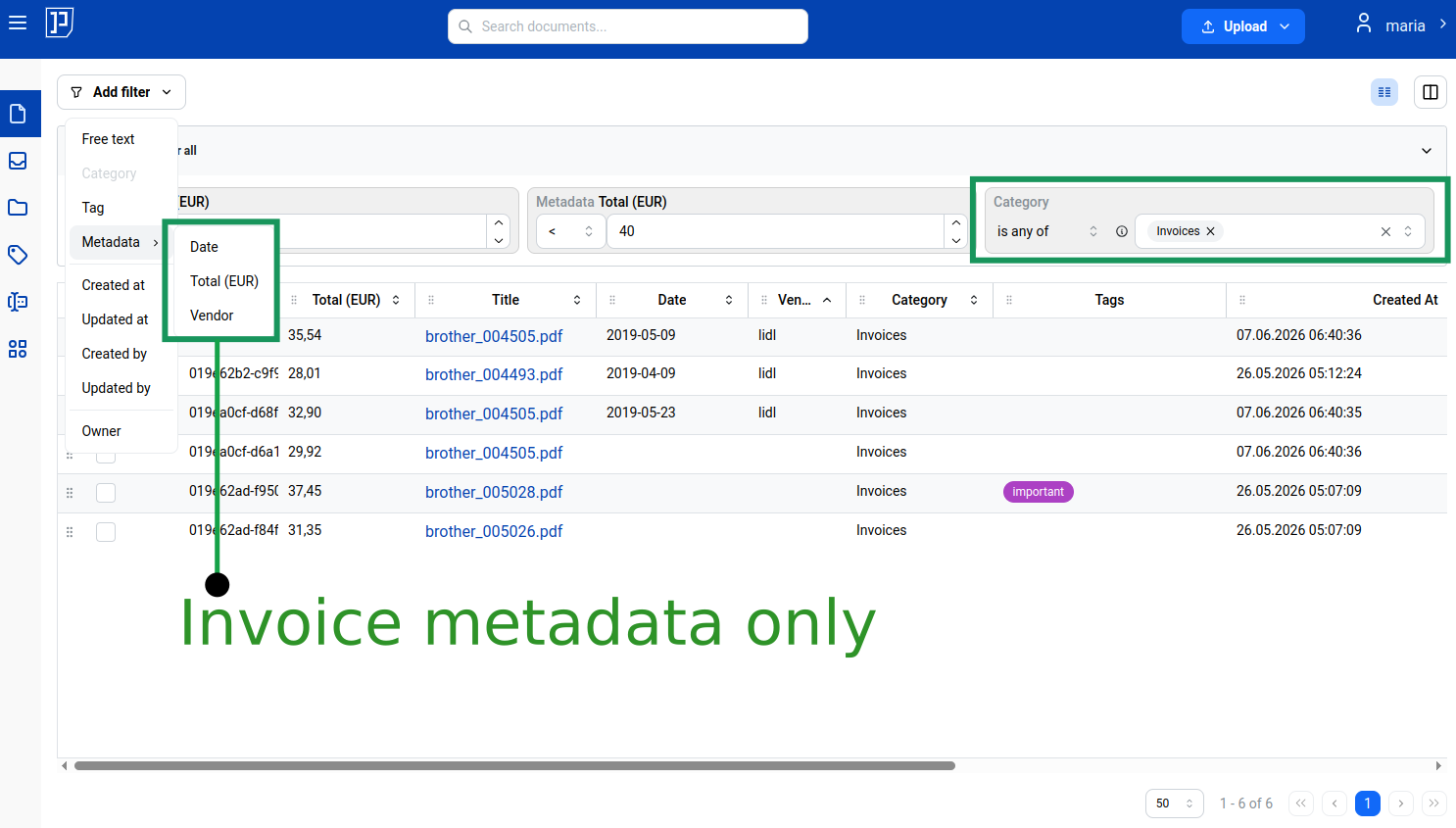
However, if the user selects one particular category to filter by, then in both the column filter and the metadata filter the user can select only metadata that belongs to that category. In the illustration below, the Invoice category has the following metadata fields:
- Date
- Vendor
- Total (EUR)