
Roles & Permissions
Papermerge uses role-based access control to manage what users can do. A role is a named collection of permissions.
A permission represents a single action in the system, for example Documents | Upload, Cabinets | View, Tags | Create or Tags | Delete.
A user can hold several roles. Their permissions add up: a user may do everything that any of their roles allows. Roles never take a permission away.
Two Kinds of Roles
Section titled “Two Kinds of Roles”There are two kinds of roles:
- company-wide roles
- cabinet roles
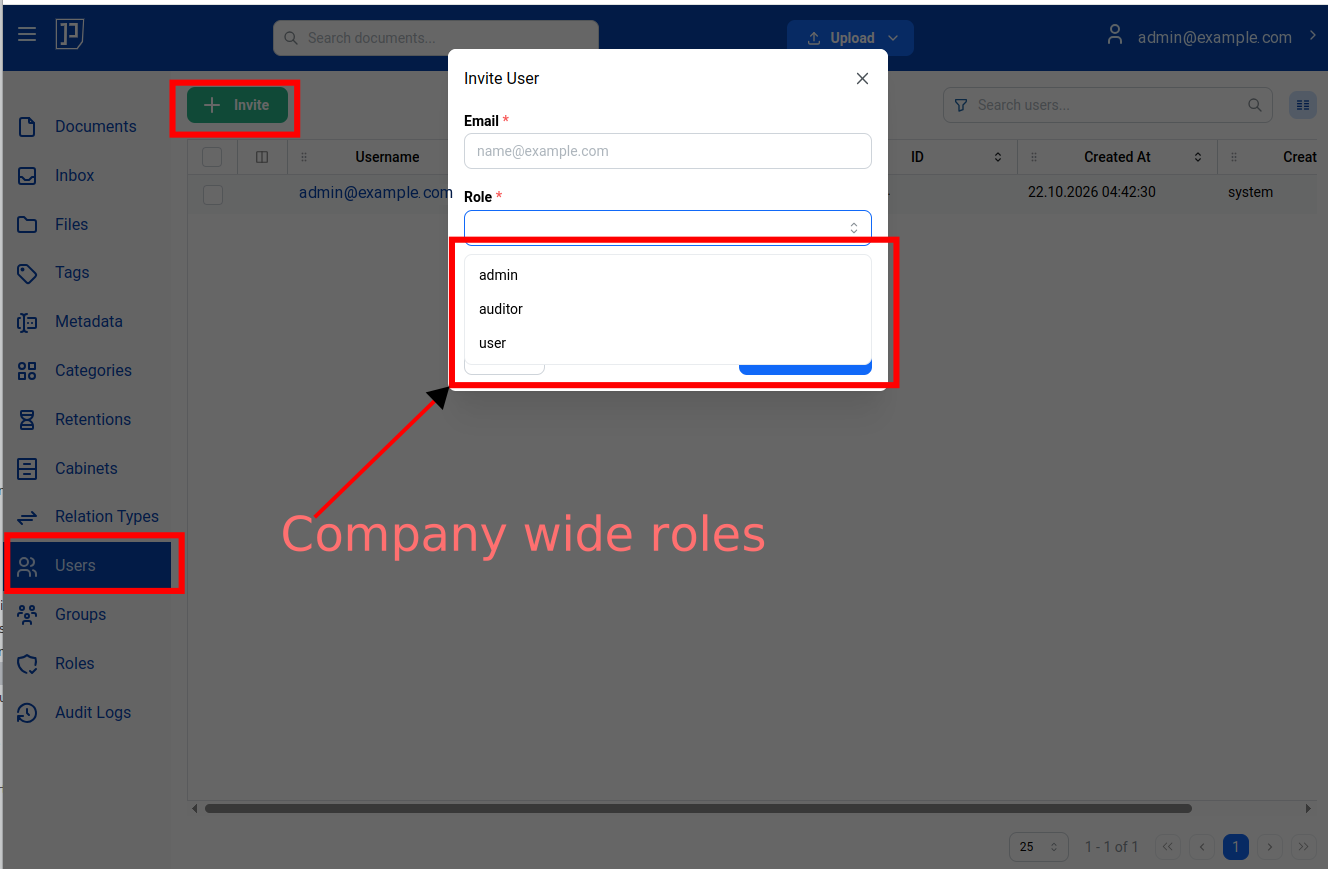
Company-wide roles control what a user may do across the whole company: manage users, groups and roles, create cabinets, manage categories, metadata, tags and retention policies, or view the audit log. Company-wide roles are assigned directly to users. They are offered in the Invite User and Edit User dialogs.
The following illustration shows the Invite User dialog offering the company-wide roles.
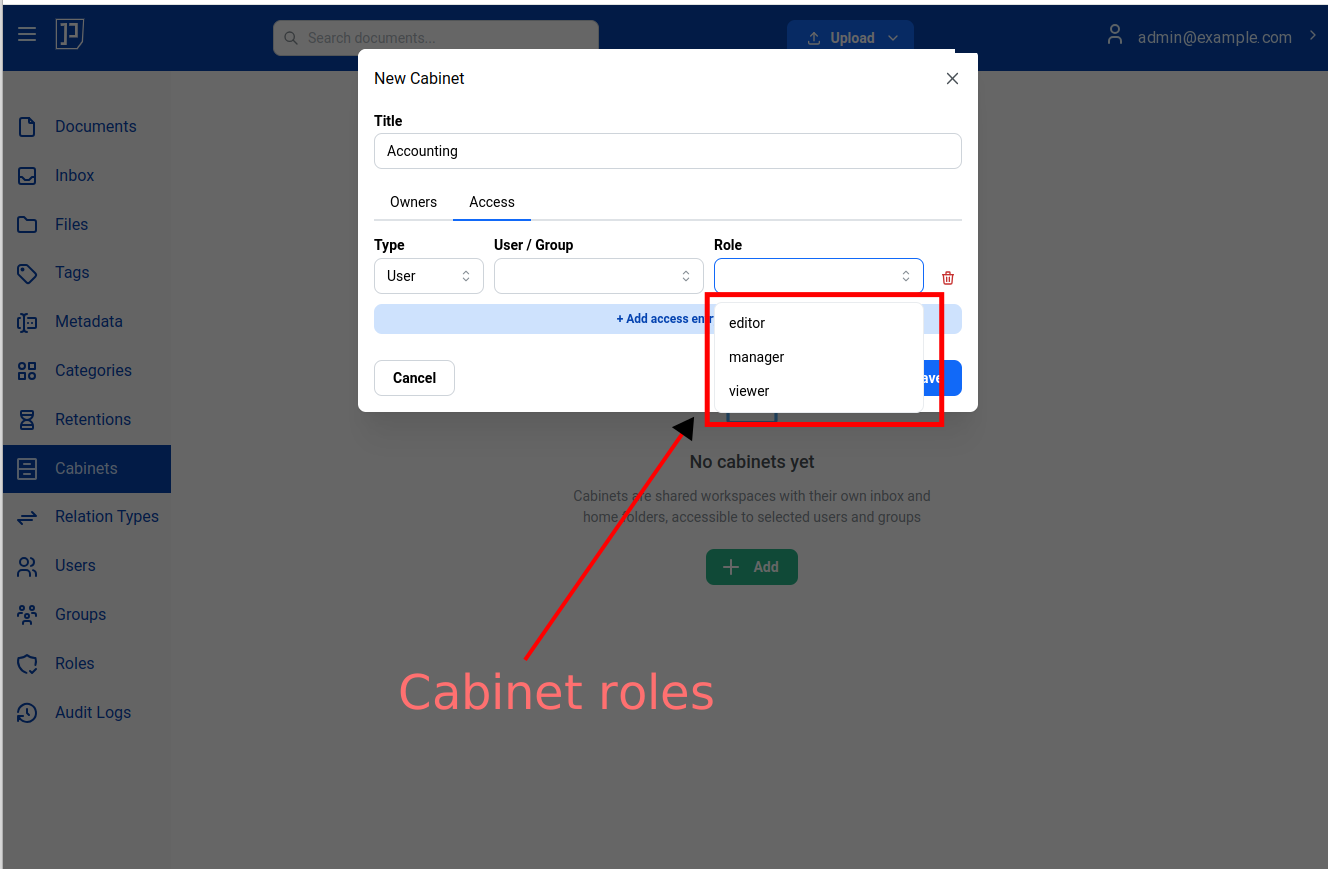
Cabinet roles control what a user may do with the documents in one cabinet: view, download, upload, edit, move or delete them. Cabinet roles are given to a user or a group on a specific cabinet. They are offered in the Role field on the Access tab of the cabinet dialog, as shown in the following illustration.
Where Access to Documents Comes From
Section titled “Where Access to Documents Comes From”Company-wide roles never grant access to documents. Access to a document depends only on where the document is stored:
| Documents | Access |
|---|---|
| Your own Home and Inbox | Full access. No role is needed. |
| A cabinet you own, or a group you belong to owns | Full access. |
| Any other cabinet | Only through a cabinet role given to you, or to one of your groups, on that cabinet. |
This applies to administrators too: the admin role does not automatically give access to the documents in every cabinet. To work in a cabinet, an administrator needs a cabinet role on it, or must own it, like everyone else.
Creating a Role
Section titled “Creating a Role”When you create a role, you first choose its kind: Company-wide or Cabinet. The list of permissions then shows only the permissions that take effect for that kind.
The kind cannot be changed later, because the role may already be assigned where the other kind is not allowed. If you need the other kind, create a new role.
Two permissions are available in both kinds, with a different reach:
| Permission | In a company-wide role | In a cabinet role |
|---|---|---|
| Cabinets | View | See the Cabinets page with all cabinets | See the contents of that cabinet |
| Cabinets | Manage Access | Manage who has access to any cabinet | Manage who has access to that cabinet |
Default Roles
Section titled “Default Roles”Every team workspace comes with the following roles.
Company-Wide Roles
Section titled “Company-Wide Roles”| Role | Allows |
|---|---|
| admin | Everything company-wide: users, groups, roles, cabinets, categories, metadata, tags, retention policies, audit log |
| user | Create and edit tags, metadata and categories; manage own API tokens |
| auditor | View the audit log; view tags, metadata, categories and retention policies |
Cabinet Roles
Section titled “Cabinet Roles”| Role | Allows |
|---|---|
| viewer | View and download documents |
| editor | Everything a viewer can, plus upload, edit, move, set metadata and categories, edit pages, link documents |
| manager | Everything an editor can, plus delete documents, manage who has access to the cabinet, manage the cabinet’s own tags, metadata and categories |